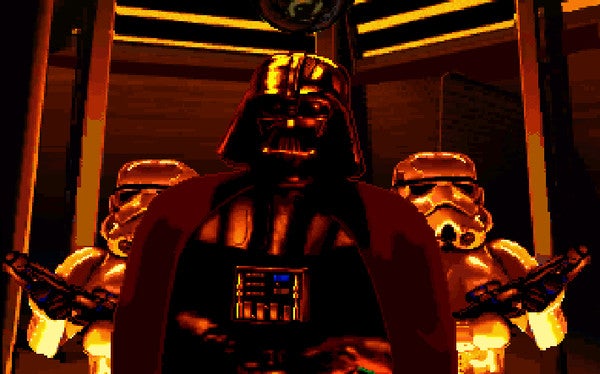
X-Wing Alliance
This is the last entry in the X-Wing series. It’s story telling goes far beyond what was in previous games and really is the definitive Single Player experience in the series.
What you’ll need
- Disc 1 and Disc 2 of X-Wing Alliance
- The following zip file which is a compilation of compatibility patches for the Windows 95/98 edition of Tie Fighter: XWA-win7.zip
- An Xbox 360 Controller (Wired or Wireless+Wireless Xbox 360 Receiver). If you have another controller you’d like to set up for this game, you should be easily able to after doing the Installation steps with this guide.
- A print out of the following Quick Reference Guide for playing the game with an Xbox 360 controller and a Keyboard: XWA-X360.pdf (Included in XWA-win7.zip).
64-bit Installation
- Extract XWA-win7.zip into a temporary folder on your hard drive.
- Insert X-Wing Alliance Disc 1 into your CD/DVD drive. If the X-Wing Alliance Setup Window opens, close it.

- Go to Start->Computer. You should see XWA_DISK_1 as the label of the disc. Right click on it and click Open.
- You should now see the contents of the CD-ROM. Select everything and Copy it. Create a temporary folder called XWACD somewhere on your hard drive, and Paste the contents of the CD-ROM there.
- Open X-Wing_Alliance_MSI_v1.0.0.0.zip from the folder where you extracted XvT-win7.zip and extract and run X-Wing_Alliance_MSI_v1.0.0.0.exe. Follow the steps and install it into the XWACD folder that you just created in the previous step. Click Yes to overwrite existing files. You may need to install Microsoft Visual C++ 2005 SP1 x86 Runtimes for this installer to work.
- Run X-Wing Alliance.msi from the XWACD folder and go through the installation steps.
- Open RegEdit (Start->Run->regedit) and browse to HKEY_LOCAL_MACHINE\SOFTWARE\Wow6432Node\LucasArts Entertainment Company LLC\X-Wing Alliance\v1.0. Edit the following entries and change C: to the drive letter that the X-Wing Alliance Disc is in:
Analyze Path
CD Path
Source Dir
Source Path - Continue following the steps in the Setup section Below.
Note: Alternate instructions for 64-bit Installation made by Markus Egger can be found HERE if you’re having problems with this method.
32-bit Installation
- Extract XWA-win7.zip into a temporary folder on your hard drive.
- Insert the X-Wing Alliance Disc 1 CD-Rom into your CD/DVD drive. Go through the normal installation steps.
- Continue following the steps in the Setup section Below.
Note: Throughout the rest of the tutorial I may refer to C:\Program Files (x86). On 32-bit systems this is just C:\Program Files.
Setup
- Run XWAUPD202.EXE from the folder with the Extracted Contents of XWA-win7.zip to Install XWA Patch 2.02.
- A common problem in XWA on modern video cards is the fonts appearing garbled or corrupted. To fix this, open XWA-AllRFonts.zip from the folder with the extracted contents of XWA-win7.zip and extract Fonts.dat into C:\Program Files (x86)\LucasArts\X-Wing Alliance\RESDATA
- If you’d like to use a widescreen resolution and antialiasing, you’ll need to use a modified XWINGALLIANCE.exe. I’ve included fixed versions depending on what resolution you’d like to use in the AA(Fixedclear)+Widescreen Fix folder. Note that I bundled in fixes for the stock XWA 2.02 exe and the exe that you’ll get after installing UCP & XWAU (see the next page for details). You should not be applying the fixed XWA 2.02 EXE on an X-Wing Alliance install which does include either the UCP or XWAU. If you’d like to use other resolutions or edit an already customized EXE you have (due to installing mods), refer to the guide on widescreengamingforum. The XWINGALLIANCE.exe I’ve bundled also has the fixedclear.bat patch already applied from xwahacker.zip to allow the use of anti-aliasing (without this, you won’t be able to see 3d objects when playing the game if AA is enabled). The negative impact of this is that it causes ghosting of the 3D models in the Tech Room & Briefings.
- Go to your Video Card Settings (for nVidia Right Click on the desktop and click nVidia Control Panel). Create a profile for XWINGALLIANCE.EXE and Enable Overriding Application Antialiasing settings, 4x Antialiasing and 16x Anisotropic Filtering. Apply the settings and then exit the Control Panel. If you have an ATI card, I imagine it shouldn’t be too different to do this.
- Insert X-Wing Alliance Disc 1 into your CD/DVD drive
- Ensure your Xbox 360 controller is connected and is the primary controller set up on your PC.
- Run the game from the X-Wing Alliance shortcut in your start menu (NOTE: Sometimes I’ve noticed the game does not start when running the shortcut. If you have that issue, try running XWINGALLIANCE.exe directly from your X-Wing Alliance folder in Program Files).
- The first time you run it, it will ask you to setup your 3D card, click yes to do it. Eventually you should end up in the XWA Launcher after going through those steps. Click Play X-Wing Alliance
- Once you’re in the main menu, go to config and ensure the Singleplayer and Multiplayer Graphics options are setup like follows. Note that if you’re using the widescreen hack, it won’t show the correct label for the resolution you want to use– if you want to use 1920×1080, it will be labelled 1280×1024 (assuming you have the modified EXE file for 1920×1080)
- Go to the Sound Options and increase the number of Channels available to 32.
- Then click Joystick to go to the Joystick Configuration and turn off the Rudder control (if you’re using an Xbox 360 controller, this will end up being on the wrong axis– will fix it with JoyToKey). Then go to remap controls and set it up as follows (hit the keyboard key assigned to the action to quickly map it to the joystick control):
Joystick Button 1: Space – Confirm critical orders
Joystick Button 2: E – Target closest fighter targeting you
Joystick Button 3: Alt-3 – Roll/Target ship in sights
Joystick Button 4: T – Next target
Joystick Button 5: W – Cycle weapon settings
Joystick Button 6: Alt-2 – Fire weapon
Joystick Button 7: G – Toggle Gunner/Pilot Position
Joystick Button 8: O – Target nearest Objective
Joystick Button 9: Enter – Match targeted craft’s speed
Joystick Button 10: Backspace – Full Throttle
Joystick POV U: X – Cycle Firing Settings
Joystick POV R: S – Cycle Shield Settings
Joystick POV D: F9 – Laser Recharge Rate
Joystick POV L: F10 – Shields Recharge Rate
Then Click Back to Options. And then Click OK to close the dialog.
- Exit the game to ensure the Settings Save
- If you’d like to use your controller to navigate the menus and add additional mappings to the Right Stick, Open the JoyToKey.zip archive from the folder where you extracted XWA-win7.zip and extract it to a location where you’d like to store the program (i.e. C:\joytokey), ideally in a folder that is not controlled by Windows (folders that are controlled by Windows are: Program Files, Users, etc). Run it and select the XWA profile. This essentially enables mouse emulation on the controller, so you can use this also to navigate your Windows Desktop if you’d like. Just make sure you don’t keep JoyToKey open when running other games in the series that support both the controller and mouse as that can cause input conflicts.
Notes
…and enjoy! Remember to check out the Quick Reference Guide PDF and print it out for quick reference. You’ll still need access to your keyboard while playing the game to access some of the least common or least urgent controls. So if you plan on hooking your PC up to your TV to play, you will want to have a Bluetooth keyboard close by to enjoy this game.
If the rudder is a little too sensitive for your liking, you can disable the mapping on Axis4 in JoyToKey, and then either re-enable it in game (which would have it be RS-Up/RS-Down to roll left and right) or just leave it disabled. You’ll still be able to roll using the “X” button.
If you’d like to use 3D Sound support in Windows Vista/7, you’re going to need to use Creative ALchemy. Unfortunately this is only officially available for PCs with Creative Sound Cards.
Credits
- Markus Egger (Homepage): MSI Installer
- Ryo Ohkubo (JoyToKey English Homepage): JoyToKey
- EX-TFA_Stranger (LucasFiles): XWA All-resolution Font Set
- BooTx & ERADEEJAY (widescreengamingforum): XWA Widescreen hack.
- Reimar (XWAHacker): Includes various fixes for problems you could have with XWA.
Table of Contents
- Introduction
- X-Wing
- X-Wing (DOS CD-ROM Edition)
- X-Wing Reconstructed
- Tie Fighter
- Tie Fighter (DOS CD-ROM Edition)
- Tie Fighter Reconstructed
- X-Wing vs. Tie Fighter: Balance of Power Campaign
- X-Wing Alliance
- X-Wing Alliance Graphical Upgrades
- Keyboard, Mouse & TrackIR Support
Contact the author at @AbdulBCRT on Twitter if there are any issues with the guide.


Pingback: Guide: Play X-Wing Series on Windows 7 (with an Xbox 360 … - xbox-360-controller
Pingback: Your Questions About Laptops Under 500.00 | Laptopsunder500bucks.com
Pingback: mujeres article
Pingback: Tie Fighter 95 Reconstructed Mod restoring original DOS music released! « Saving Content
Pingback: My Homepage
Pingback: OutletPC’s Interview with Scott Ellison II of Saving Content! | OutletPC.com Blog
Pingback: Delizia.pl